

Managing customer information across multiple software platforms can be frustrating — especially when you’re trying to avoid duplicate data entry. That’s why The Landscape Estimator (TLE) makes it easy to import and export customer data using Yardbook-compatible CSV files.
Whether you’re switching systems, syncing customer lists, or simply organizing your workflow, moving customers between TLE and Yardbook only takes a few minutes.
Why Use Customer Imports and Exports?
Importing and exporting customers helps landscaping businesses:
Save time on manual data entry
Keep customer records organized
Quickly migrate between software platforms
Build estimates faster in TLE
Maintain a cleaner customer database
TLE is designed to work alongside the tools landscapers already use — and Yardbook is no exception.
Exporting Customers from TLE
Exporting customers from TLE allows you to generate a CSV file that can be imported directly into Yardbook.
From the Customers page in TLE, you can export your customer list and save it as a CSV file.
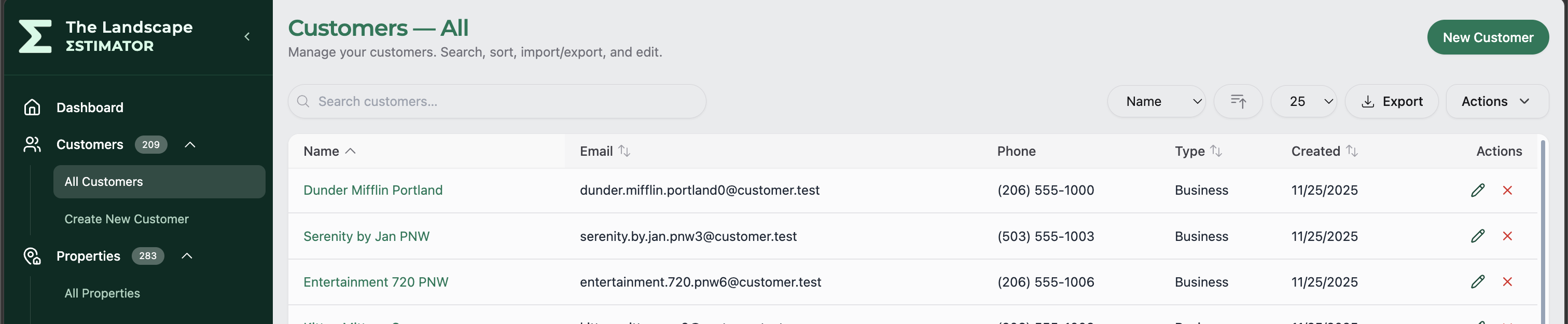
After Clicking Export, you'll see a prompt to select the export type. Here you would select Yardbook:

Once exported, your CSV file can be uploaded into Yardbook using their customer import tool.
Importing Customers into Yardbook
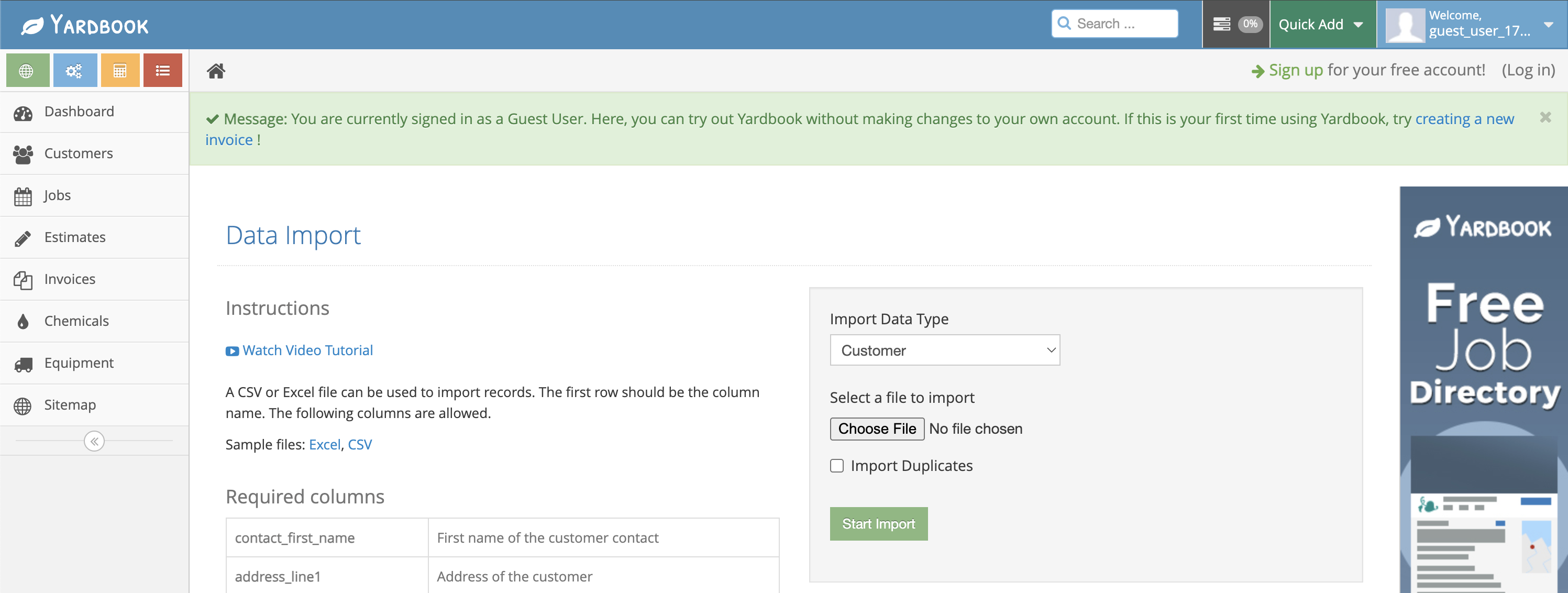
Inside Yardbook, navigate to:
Customers → Import From File
From there:
Select Customer as the import data type
Choose your CSV file
Optionally allow duplicate imports
Click Start Import
Yardbook Supported Columns
When importing or exporting customer data between TLE and Yardbook, only Yardbook-supported fields are included.
This is important because custom TLE-specific fields will not transfer into Yardbook.
Required Columns
These columns are required for a successful import:
Column Name
Description
contact_first_nameFirst name of the customer contact
address_line1Address of the customer
cityCustomer city
zip_codeCustomer zip code
Optional Columns
These optional fields can also be included:
Column Name
Description
contact_last_nameLast name of the customer contactbusiness_nameName of business
emailCustomer email address
phoneCustomer phone number
mobileCustomer mobile number
faxCustomer fax number
address_line2Address line 2
stateState (defaults from company record if omitted)
countryCountry (defaults from company record if omitted)
Exporting Customers from Yardbook
Yardbook also makes it easy to export your existing customer list as a CSV file.
From the Customers page, scroll toward the bottom and click the CSV export option.
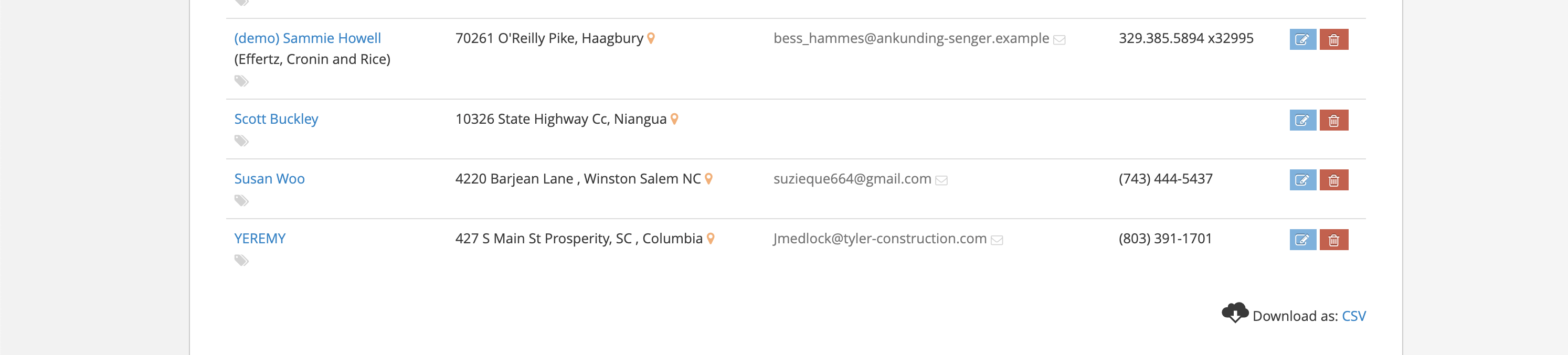
You can then import that exported file directly into TLE.
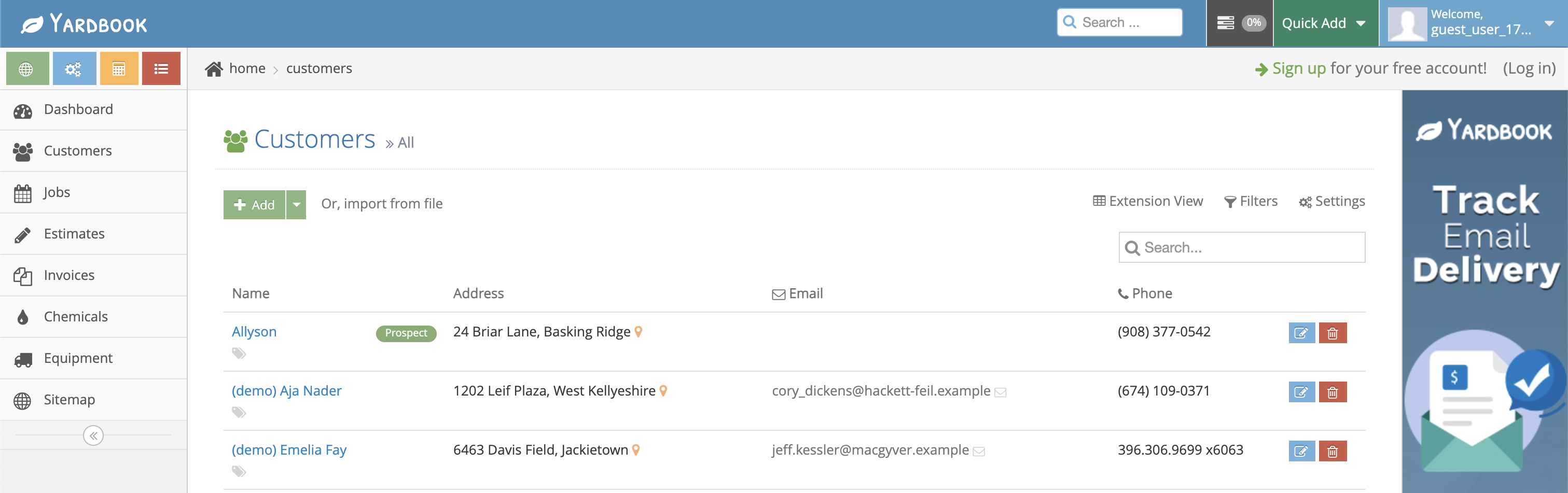
Yardbook Customer List Screen
Here’s an example of the Yardbook customer management page where imports and exports are managed.
Tips for a Smooth Import
Match Column Names Exactly
Your CSV headers should match Yardbook’s supported field names exactly.
Clean Your Data First
Before importing:
Remove duplicates
Verify addresses and emails
Standardize phone numbers
Ensure required fields are completed
Test with a Small Import
If you have a large customer database, try importing a few records first to confirm everything maps correctly.
Better Together
At The Landscape Estimator, we know contractors use multiple tools to run their businesses. Our goal is to make moving data between platforms as simple as possible.
By supporting Yardbook-compatible imports and exports, TLE helps you spend less time managing spreadsheets and more time building estimates and growing your business.
Stay tuned for more articles in our “Better Together” series, where we highlight how TLE works seamlessly with other tools landscapers already love.
Keep reading
More updates, releases, and estimating ideas are in the newsroom.